1. はじめに #
Amazonアソシエイトをやってみました。AmazonアソシエイトのサイトからもURLリンクをコピーできますが、文字列だけで画像が表示できませんでした。
Hugoのショートコードを使って、画像付きのAmazonアソシエイトリンクを貼り付けられるように実装しました。
内容を以下にメモしておきます。参考になれば幸いです。
さらに、現在のブログ運営において法的に避けては通れない景品表示法(ステマ規制)に基づく「PR表記」を、フロントマターの切り替えだけで記事冒頭に自動出力させるテーマカスタマイズ方法も併せてご紹介します。
2. AmazonのトラッキングIDを変数に入れておく #
Amazonアソシエイトに登録し、トラッキングIDを取得しておきます。文字列-22みたいな形のIDです。
取得したトラッキングIDを変数として扱えるようにconfig/_default/hugo.tomlに記載します。
config/_default/hugo.toml
[params]
  amazonTrackingID = "amazonトラッキングID-22"
3. ショートコード用のhtmlファイル作成 #
layouts/shortcodes/amazon-associate.htmlに以下のコードを記載しました。
参考までに載せておきます。
layouts/shortcodes/amazon-associate.html
{{ $asin := .Get 0 }}
{{ $title := .Get 1 | default "Amazonで詳細を見る" }}
{{ $img := .Get 2 }}
{{ $trackingID := .Site.Params.amazonTrackingID | default "MISSING_ID" }}
{{ $link := printf "https://www.amazon.co.jp/dp/%s?tag=%s" $asin $trackingID }}

{{ $finalImg := "" }}
{{ if $img }}{{ $finalImg = $img }}{{ else }}{{ $finalImg = printf
"https://m.media-amazon.com/images/P/%s.01.MZZZZZZZ.jpg" $asin }}{{ end }}

<div class="amazon-card-container" style="margin: 2rem 0; max-width: 700px; width: 100%; clear: both;">
  <a href="{{ $link }}" target="_blank" rel="noopener" class="amazon-card-anchor"
    style="text-decoration: none !important; color: inherit !important; display: block !important; line-height: 1.5; border-bottom: none !important; padding: 0 !important; margin: 0 !important;">
    <div class="amazon-link-card"
      style="border: 1px solid #d1d5db; border-radius: 0.75rem; overflow: hidden; background-color: #ffffff; display: flex; flex-direction: column; transition: all 0.3s ease; box-shadow: 0 2px 4px rgba(0,0,0,0.05); width: 100%; padding: 0 !important; margin: 0 !important;">

      {{/* メイン部分 */}}
      <div class="amazon-main-area"
        style="display: flex !important; flex-direction: row !important; padding: 1.25rem !important; align-items: flex-start !important; background-color: #ffffff !important; border: none !important; margin: 0 !important;">
        <div class="amazon-img-wrapper"
          style="flex-shrink: 0 !important; width: 110px !important; height: 110px !important; margin-right: 1.25rem !important; display: flex !important; align-items: center !important; justify-content: center !important; background: #fff !important; padding: 0 !important; border: none !important;">
          <img src="{{ $finalImg }}" alt="{{ $title }}"
            style="max-height: 100% !important; max-width: 100% !important; object-fit: contain !important; margin: 0 !important; display: block !important; border: none !important; pointer-events: none !important; box-shadow: none !important; padding: 0 !important;">
        </div>

        <div class="amazon-info-wrapper"
          style="flex-grow: 1 !important; min-width: 0 !important; padding: 0 !important; margin: 0 !important; display: block !important; text-align: left !important;">
          <div class="amazon-title-text"
            style="font-weight: 700 !important; font-size: 0.95rem !important; line-height: 1.5 !important; margin-bottom: 1rem !important; color: #1f2937 !important; word-break: break-all !important; text-decoration: none !important; border: none !important;">
            {{ $title }}
          </div>
          <div class="amazon-btn"
            style="display: inline-block !important; background: linear-gradient(to bottom, #f7dfa1, #f0c14b) !important; color: #111111 !important; padding: 0.4rem 1.2rem !important; border-radius: 4px !important; font-size: 0.85rem !important; font-weight: 500 !important; border: 1px solid #a88734 !important; text-decoration: none !important; line-height: 1.2 !important;">
            Amazonで見る
          </div>
        </div>
      </div>

      {{/* グレーの帯 */}}
      <div class="amazon-footer-area"
        style="font-size: 0.65rem !important; color: #6b7280 !important; text-align: right !important; padding: 0.6rem 1rem !important; background-color: #f3f4f6 !important; border-top: 1px solid #e5e7eb !important; margin: 0 !important; display: block !important; width: 100% !important; box-sizing: border-box !important;">
        Amazon.co.jp で詳細を見る
      </div>
    </div>
  </a>
</div>
4. ブラウザのブックマークにJavaScript登録 #
以下のコードをブラウザのブックマークに登録します。
javascript:(function(){
  async function copy(text) {
    try {
      await navigator.clipboard.writeText(text);
      alert('コピー成功!\n' + text);
    } catch (err) {
      /* 古いブラウザ用のフォールバック */
      const el = document.createElement('textarea');
      el.value = text;
      document.body.appendChild(el);
      el.select();
      document.execCommand('copy');
      document.body.removeChild(el);
      alert('コピーしました(fallback)');
    }
  }

  try {
    /* 1. ASINを探す(複数の候補から) */
    const asin = document.querySelector('#ASIN, [data-asin], input[name="idx.asin"]')?.value
               || document.querySelector('[data-asin]')?.dataset.asin;

    /* 2. タイトルを探す */
    const title = document.querySelector('#productTitle, #ebooksProductTitle, #title')?.textContent.trim();

    /* 3. 画像URLを探す(メイン、本、またはサムネイルリストから) */
    const imgEl = document.querySelector('#landingImage, #imgBlkFront, #main-image, .a-dynamic-image');
    let thumb = imgEl?.src || imgEl?.dataset?.oldHires || imgEl?.dataset?.aDynamicImage;

    /* URLがJSON形式(複数画像)で入っている場合の処理 */
    if (thumb && thumb.startsWith('{')) {
      thumb = Object.keys(JSON.parse(thumb))[0];
    }

    if (!asin || !title || !thumb) {
      console.error({asin, title, thumb});
      throw new Error('必須情報の取得に失敗しました');
    }

    const mUrl = thumb.replace(/\._S[X|Y]\d+_/, '._SL200_');

    const shortcode = `{{< amazon-associate "${asin}" "${title}" "${mUrl}" >}}`;
    copy(shortcode);

  } catch (e) {
    alert('エラー: Amazonの商品ページで実行してください。');
    console.error(e);
  }
})();
5. amazonの商品ページで4.で作成したブックマークを実行 #
amazonの商品ページで4.で作成したブックマークを実行すると、 コピーされるので、Hugo内の記事に貼り付けます。 以下のようなショートコードの形で貼り付けられます。
{{< amazon-associate "B0DJ8LD62M" "PFU キーボード HHKB Studio 日本語配列/雪(ポインティングスティック メカニカルキーボード)" "https://m.media-amazon.com/images/I/61d+MPkNrfL._AC_SX679_.jpg" >}}以下のようにamazonの商品画像が表示されるようになりました。
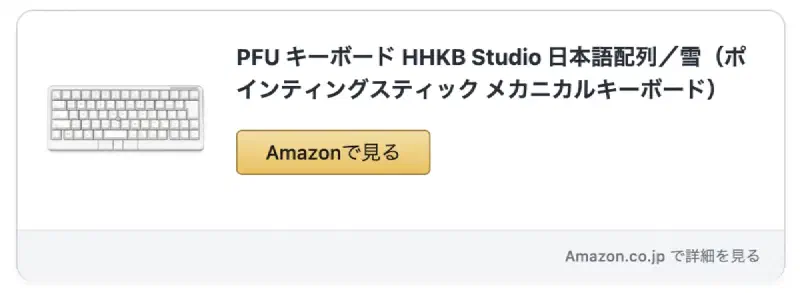
※サンプル画像で表示しています
6. アソシエイトリンクが有効になっているか確認 #
最後に、hugo server でローカルビルドを行い、リンクのデザインや画像が正しく表示されているか確認します。
あわせて、生成されたリンクをコピーしてAmazonアソシエイトの管理画面にある「リンク動作確認ツール」等で、トラッキングIDが正しく紐付いているかチェックしておくと安心です。
また、本機能を利用してアフィリエイトリンクを掲載する際は、景品表示法に基づくステマ規制対策として、当ブログのようにフロントマターの pr: true を有効化し、記事冒頭に「プロモーションが含まれています」等の広告明記(PR表記)を自動出力させる運用とセットで管理することをおすすめします。
Hugoでの実装サンプルは以下に記載します。
7. ステマ規制対策:テーマレイアウトへの「PR表記」実装 #
アフィリエイトなどの広告リンクをサイト内に掲載する場合、読者が視覚的に「これはプロモーション広告である」という点を明確に判別できるよう、記事内に適切な広告明記(PR表記)を行うことが消費者庁の景品表示法によって定められています。
記事を書くたびに毎回手動で注意書きのテキストを記述するのは非効率的であり、配置ミスなどのリスクもあるため、Blowfishの共通テンプレートである single.html を適切に編集してシステム化します。
これにより、デザインの調和を維持したまま、フロントマターの記述だけでPR表記を切り替えられるようになります。
① layouts/_default/single.html の編集
#
プロジェクトルートの layouts/_default/single.html (該当ディレクトリにファイルが存在しない場合は、テーマフォルダ themes/blowfish/layouts/_default/single.html から自分のプロジェクト側の同じ階層へファイルをコピーして配置してください)をエディタで開きます。
記事のメイン領域をレンダリングする {{ define "main" }} ブロックを探し、タイトル等を表示する header タグ内の適切な位置(タイトルの直上や直下など)に、以下の条件分岐コードを挿入します。
{{/* layouts/_default/single.html に追加 */}}
{{ if .Params.pr }}
<div style="font-size: 0.8rem; color: #71717a; margin-bottom: 1rem; display: flex; align-items: center;">
    <span style="border: 1px solid #71717a; padding: 0px 6px; border-radius: 4px; margin-right: 8px; font-weight: bold; font-size: 0.7rem;">PR</span>
    <span>本ページはプロモーションが含まれています</span>
</div>
{{ end }}
② 記事のFront Matter(フロントマター)で有効化 #
上記のような条件分岐テンプレートを1度仕込んでおけば、今後は広告リンクを掲載する個々のマークダウン記事の冒頭(フロントマター)に、パラメータとして pr: true を1行追記するだけで、自動的に記事の最上部にPR表記のラベルが出力されるようになります。
---
title: "サンプルです"
date: '2026-05-07'
pr: true # このパラメータを設定するだけで、自動的に記事冒頭にPRラベルが出力されます
---
7. アソシエイトリンクが有効になっているか最終確認 #
すべての実装手順が完了したら、ローカル環境で hugo server を立ち上げ、テストビルドを行って以下の3点を確認します。
- レイアウトとPRラベルの確認: 記事の最上部に指定した「PR」のマークとテキストが表示されているか、またAmazonアソシエイトのカードデザインが崩れずに出力されているか確認します。
- トラッキングIDの動作チェック: 生成されたカスタムカードのリンクボタンを実際にクリックし、Amazonへ遷移した際のブラウザのURLパラメータの中に、自分が
hugo.tomlに設定した固有のトラッキングIDが正しく紐付いているかをチェックします(Amazonアソシエイト管理画面にある「リンク動作確認ツール」等を使うとより確実で安心です)。 - プライバシーポリシーの整合性: アフィリエイトリンクを掲載してブログの運用を行うにあたり、サイト全体の共通固定ページである「プライバシーポリシー」にも、Amazonアソシエイト等の第三者配信広告サービスを利用している旨、およびCookieを使用して適切な広告配信やデータ収集が行われている旨をしっかりと明記し、最新の状態に更新しておきましょう。